
Check drivers and install or update MicroPython firmware.
If the board is not showing up or will not start, check the cable and computer connection first. Ask the board what software it has. Install an update only if the check shows one is needed, then make sure the board works.
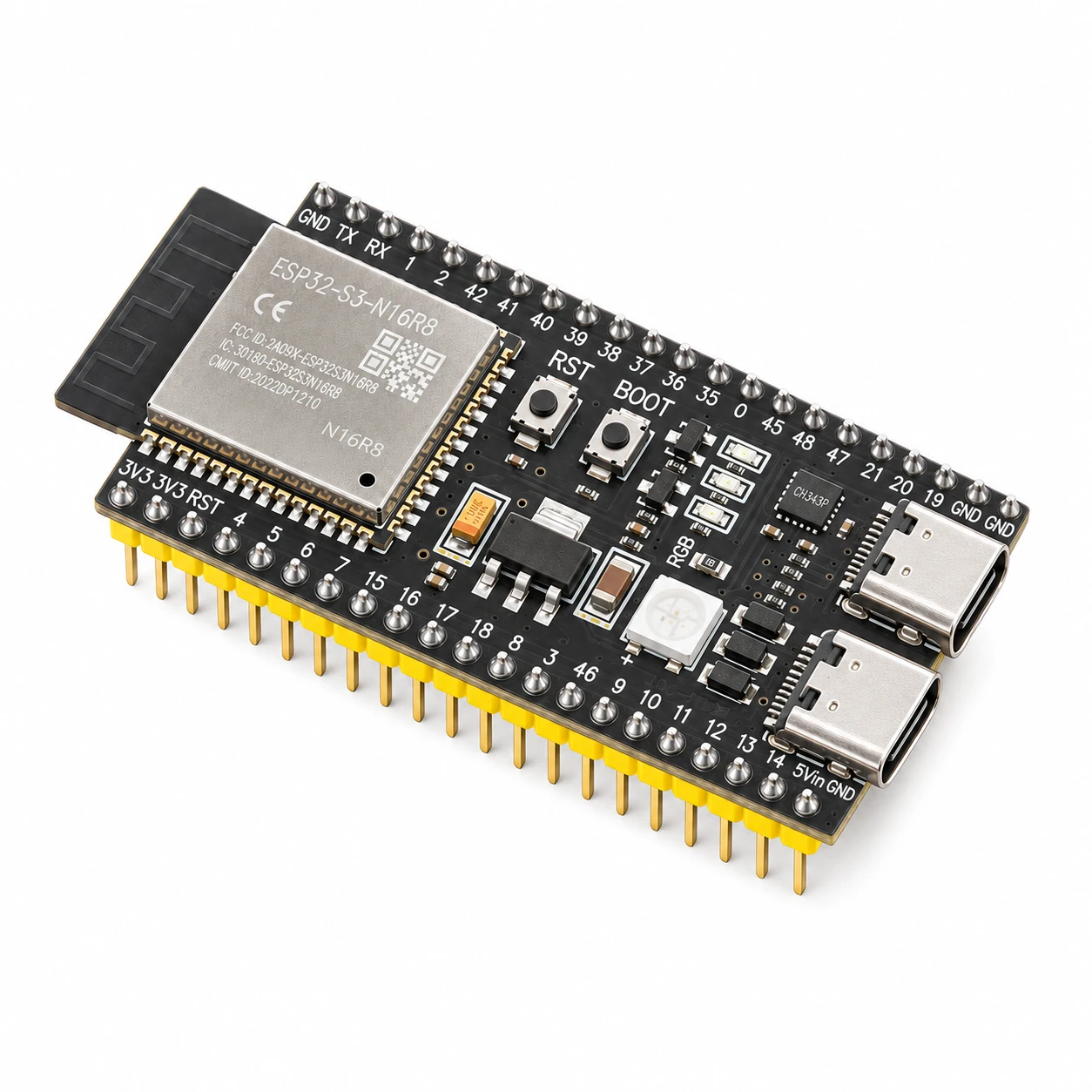
Preview for the current ESP32-S3 N16R8 kit board. Final Windows, macOS, and hardware checks are still in validation.
Four checkpoints, with a stop after each
CONDITIONAL FIRMWARE PATH- 01See the board
Check the data cable and whether the computer sees the board.
- 02Decide
Ask the board which software it is running.
- 03Prepare
Save your files and get the right software.
- 04Check it works
Only install or update when needed, then check the board replies.
P02 learning rule
Check one thing at a time.
A light only shows that the board has power. It does not show whether the cable can carry data or what software the board is running. Use each check to decide what to do next.
CHECK IN THIS ORDER
- 01Cable and socket
Connect the bare board to the socket marked USB with a known data cable.
- 02Check whether the computer sees the board
Compare the connected-device list before and after plugging in the board. If there is a warning, find out what it says before installing a driver.
- 03Board software
Ask the board which software and version it is running. Keep a working version that fits the course.
Remove external power and attached circuits before connecting. Disconnect USB power before changing wiring.
Step 1 · Check and decide
Ask AI whether firmware needs a change.
Use one prompt at a time in the same AI chat. Start with 1.a. Move to 1.b only after the computer sees the board, then use 1.c after the board replies. If a result is unclear, stay on that check and tell AI what you see.
1.aFind the board on your computerStart here
I am new to this. I have an ESP32 board and a USB data cable. Help me see if my computer notices the board. Ask whether I use Windows or Mac. Give me one thing to do at a time and wait for my result. Help me compare the device list before and after connecting to the socket marked USB. If no new device appears, guide me to check the cable and socket. If there is a warning, ask what it says before suggesting a driver. Use only the official driver for the identified device. Do not guess or discuss firmware yet.No new device or a warning? Stay in 1.a and tell AI what you see. Do not move to 1.b yet.
1.bCheck the board's softwareAfter the computer sees the board
I am new to coding. Help me check whether this ESP32 board is running MicroPython. Use everyday words and give me one small step at a time. First ask whether I use Windows or Mac, then help me open a simple window to talk to the board. Tell me exactly what to open or click, and wait for me to say what I see. Help me find the welcome message that names the board's software and version. If it is not shown, give me one short line to copy and tell me exactly where to paste it. Explain the result in plain words; I do not need to understand the line. If there is no clear reply, help me check the connection before suggesting any firmware change.No board reply or unclear message? Stay in 1.b and share what you see. Do not decide yet.
1.cDecide what to doAfter the board replies
Based on what we saw, tell me what to do. Use one label, explain it in everyday words, give one reason, and give one next step: KEEP (the board is ready), INSTALL (MicroPython is missing), UPDATE (a course or project needs a different version), REPAIR (we found a software problem), or PAUSE (we need another check). This course does not set a minimum version, so a newer version alone is not a reason to update. If unsure, choose PAUSE. Do not download or change anything yet.Continue to Step 2 only for INSTALL, UPDATE, or REPAIR with a clear reason.
KEEP FIRMWARE
The computer sees the board and MicroPython answers with a usable version.
Save the result and skip Steps 2–3. A newer release alone is not a reason to erase a working board.
PAUSE OR PREPARE
Computer cannot see the board? Check the USB connection first. Clear firmware need? Continue to Step 2.
If the board gives no clear reply, check the connection, another app using it, and whether it started normally before deciding the software is damaged.
Only INSTALL, UPDATE, or REPAIR proceeds to firmware preparation. If the computer does not see the board, stay with the cable and driver checks.
Step 2 · Prepare only if needed
Save board files and get the right software file.
The software file depends on the exact board model. This kit uses ESP32-S3 N16R8. If your board label is different, stop and ask AI before downloading.
MicroPython ESP32-S3 downloads ↗
I am new to this. Help me get ready to install or update MicroPython on my MoloWorks ESP32-S3 N16R8 board. First check my P02 result: continue only if it says INSTALL, UPDATE, or REPAIR. If it says KEEP or PAUSE, explain what to do next and stop here.

Use everyday words. Give me one small step at a time, tell me exactly what to open, click, or copy, and wait for my result. Explain new terms; do not ask me to guess which board, file, or connection to use.

Help me save the files I need from the board to a private folder on my computer. Never ask me to share passwords or private settings in chat. Then guide me through setting up the tools for this job: Python 3.10 or newer, mpremote to connect to the board and copy files, and esptool 5 to check or install its software. Explain each in simple words.

Use the official MicroPython ESP32-S3 download page: https://micropython.org/download/ESP32_GENERIC_S3/. Help me choose a stable file for the N16R8 board's Octal PSRAM memory. It must be the merged .bin file. Tell me its name, version, and where it came from. Do not use preview or unofficial files.

Before marking READY, help me confirm the board label, the correct connection, and that the board has ESP32-S3 and 16 MB of flash memory. Use a check that only reads information and does not change the board. If we need to put it into a special install mode, explain how to use the board buttons one step at a time, then find its connection again; the connection name may change. If anything does not match, stop and explain why.

Tell me whether this is a first install, an update, or a repair, and whether the official instructions call for erasing the board. Explain that erasing removes saved files. An ordinary update should not erase everything unless the official instructions require it.

Finish with a short READY or PAUSE summary in plain words. Include the board, selected file and source, backup result, and erase decision. Mark READY only when each check is confirmed. Otherwise, name the missing check and help me do it. Do not erase or install anything in this step.
Step 2 ends with READY or PAUSE. The board software is not changed yet.
- 01
SAVE YOUR FILES
Make a private copy on your computer.
Save the programs, libraries, data, and settings you still need. Check that the saved files open. Do not paste passwords or private settings into an AI chat.
- 02
CHECK YOUR BOARD
Make sure the software file matches.
Use the stable official file selected for this board. Ask AI to confirm it matches ESP32-S3 N16R8 and the board's memory before installing.
If any check is missing or unclear, stop at PAUSE. Use the board label to confirm its exact memory type.
Step 3 · Install and check
Update the board only after it is ready.
Before anything is changed, check the board, selected file, connection, and saved copy. AI will either do the update after these checks or guide you through one ready-to-copy step. Erasing saved data is only for a first install or a repair that needs it.
I am new to this. Use my READY result from P02 to install or update MicroPython on my MoloWorks ESP32-S3 N16R8 board. Use everyday words and give me one small step at a time. Tell me exactly what to open, click, or copy, then wait for my result. Do not ask me to invent or edit commands.

Before changing anything, check that the board, connection, firmware file, and backup match my READY result. If something is missing or has changed, stop and help me check it.

If this is a first install or a repair that needs a full erase, explain that this removes saved files and ask me to confirm the backup is ready. For an ordinary update, do not erase everything unless the official instructions say it is needed. Use only the confirmed file and connection. If you can update the board directly, do so only after these checks. Otherwise, give me one complete command to copy, tell me where to paste it, and wait for me to share the result. Keep the board connected until the update is finished.

After the update, help me restart the board and read the message it shows. Check in plain words that it says MicroPython and has the version we chose. If the version is not shown, give me one short line to copy and tell me where to paste it; I do not need to understand the code. Then give me one easy check that asks the board to work out 2 + 3; tell me to look for 5 and explain what it means. If files were erased, help me put back the files I need from my private backup, one at a time.

Say PASS only after the chosen version is confirmed and the board answers 5. Otherwise pause, explain the problem in plain words, and help me check it. Do not say the update worked unless I have shared the board's reply.
Check the board label and saved files before installing the selected software.
Save the software version, result, and whether any files were restored with your P01 setup record.