
Recover in small, visible steps
A board that stops answering is not automatically broken. In about 30 minutes, work from the first missing observation, preserve readable files, and finish with a small program that starts after reset.
Put these three items in front of you
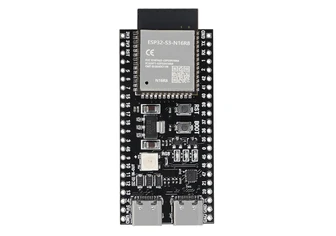
ESP32-S3-N16R8 board
The device you are recovering. Leave external circuits and power disconnected.
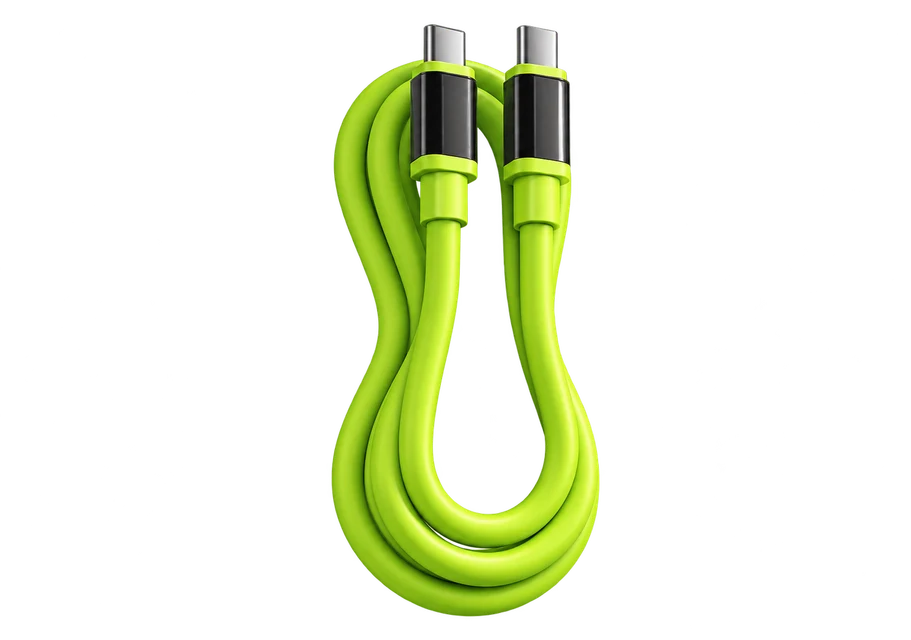
USB data cable
Use a cable already known to carry data, not only power.
Computer + private folder
Holds tools, the matching image and copies of your board files.
Before you start
- Use ML-C04 if the computer cannot detect the USB connection.
- Have desktop Python 3.10 or newer and internet for the tool and firmware downloads.
- Decide which files or settings you need to preserve before any erase.
No Python expertise is assumed. The lesson introduces the prompt and every command before you use it.
Find the first failing layer
A serial port is the computer’s connection to the board. The REPL is MicroPython’s interactive prompt, written >>>. They are different checkpoints.
Path A · files still accessible
If Python answers or mpremote can list files, save what you need and isolate the failing application first.
Path B · recover firmware
If the runtime is unusable, use the chip’s download loader to install a known image after deciding about data loss.
Check: no. First check the native USB socket, a known data cable and the computer connection.
Prepare the tools and a fresh folder
Firmware is the installed runtime. Your application is made of saved Python files. A bad file can fail while the runtime still works.
Create a recovery folder on your computer
Open a terminal there. With desktop Python installed, create an isolated tool environment:
python -m venv .venv
.venv\Scripts\python.exe -m pip install "esptool>=5,<6" mpremote
The second line is for Windows PowerShell. Below, replace PY with .venv\Scripts\python.exe on Windows, or .venv/bin/python on macOS/Linux. Replace PORT with your board’s current port name.
PY -m mpremote connect list
COM7, /dev/ttyACM0 and /dev/cu.usbmodem… are only example names. Close other serial tools before opening the port.Save readable files before changes
If MicroPython can answer, recover the files before replacing a program or erasing flash. Keep the computer recovery folder private; configuration files can contain passwords.
List, then copy the files you need
PY -m mpremote connect PORT fs ls
PY -m mpremote connect PORT fs cp :main.py main.before-recovery.py
PY -m mpremote connect PORT fs cp :boot.py boot.before-recovery.py
Copy main.py and boot.py only when listed. If a file does not exist, that copy command reports an error; inspect the list rather than inventing a replacement. Repeat the copy operation for your required modules and data files.
mpremote file operations may interrupt and soft-reset Python. Its raw-REPL reset skips main.py; a problematic boot.py can still prevent access.
Stop one failing startup file
Open the board console. Press Enter; use Ctrl-C to interrupt a running Python program. If the program catches that interrupt, it may not return a prompt.
PY -m mpremote connect PORT repl
At >>>, type these Python statements after backing up the file. Do not type the prompt symbols:
import os
print(os.listdir())
os.rename("main.py", "main.disabled.py")main.py must exist, and main.disabled.py must be unused. Choose another unused name if necessary. Do not overwrite an earlier recovery copy.boot.py, preserve that file too and have its role checked before renaming it. Do not modify the runtime’s internal _boot.py. If the prompt is usable, continue with the known small program on page 9.Ctrl-] exits the mpremote console back to the computer terminal.
Choose the known recovery image
For this N16R8 module, use the generic ESP32-S3 Octal-SPIRAM variant. N16R8 identifies 16 MB flash and 8 MB Octal PSRAM; do not choose a firmware file only because its name contains “ESP32.”
Download the worked stable image
- Open MicroPython’s ESP32-S3 download page.
- Use Firmware (Support for Octal-SPIRAM), then the stable release’s merged
.bin. - Keep the original filename in your notes. Make a copy called
firmware.binin your recovery folder.
ESP32_GENERIC_S3-SPIRAM_OCT-20260824-v1.29.0.binUse this merged BIN at 0x0, not an application-only
.app-bin, .elf or .uf2.Do not use force options to bypass a secured/encrypted device’s protections. Get its owner’s recovery instructions instead.
Enter download mode, then install
Keep the known data cable connected to native USB. With the board’s front toward you, use the lower BOOT and upper RST buttons:
List ports again and replace PORT with the current download-mode name. In the computer terminal, inspect the target first:
PY -m esptool --chip esp32s3 --port PORT flash-id
Proceed only for ESP32-S3 with the expected 16 MB flash. Stop at a chip/size mismatch. Flash ID does not identify the PSRAM type.
After the backup/data-loss decision
PY -m esptool --chip esp32s3 --port PORT erase-flash
PY -m esptool --chip esp32s3 --port PORT write-flash 0x0 firmware.bin
Prove that Python is running
A successful flash write is one checkpoint. The next is a reply from the installed runtime. Reconnect using the current runtime port:
PY -m mpremote connect PORT repl
Example board console
>>> import sys
>>> print(sys.implementation.name)
micropython
>>> 2 + 3
5
>>> print("ML-C10 ready")
ML-C10 readyRead three useful observations
sys.implementation.namerepliesmicropython.2 + 3replies5.- Your harmless greeting appears, followed by another prompt.
print(sys.version). Keep the firmware filename and current port in your recovery notes; do not include passwords or raw private configuration.Install a tiny known-good startup file
Use a small application that prints once and exits. It uses no pins, network or external hardware. Save ready_main.py from the practice folder into your recovery folder:
print("ML-C10 ready")Exit the console with Ctrl-]. Preserve any existing main.py before this copy. In the computer terminal:
PY -m mpremote connect PORT fs cp ready_main.py :main.py
PY -m mpremote connect PORT repl
ML-C10 ready. Tap RST with BOOT released for a hardware-restart check; reconnect if the port changes. If the early message was missed, Ctrl-D at the prompt shows it again.Rehearse recovery without a board
Practice the file decisions on the computer before doing them on a device. The included script creates a fresh folder; it does not open a serial port or flash anything.
Run the included rehearsal
Open the practice folder’s rehearse.py with desktop Python from that folder:
python rehearse.py
simulated_board/
Contains a deliberately failing main.py and an unrelated keep.txt. This is an ordinary computer folder, not a board emulator.
computer_backup/
Holds a byte-for-byte copy of the original file before it is renamed.
- The failing script reports its deliberate
RuntimeError. - The original is copied to the backup and renamed to
main.disabled.py. - A known small
main.pyruns and printsML-C10 ready. - The backup, disabled original and unrelated file remain intact.
Restore one piece at a time
Keep the recovered baseline small. A broken application can recreate the same symptom as soon as you copy it back.
Loader connects, no Python
Release BOOT, tap RST, find the runtime port. Recheck image variant, file type and address before another deliberate flash.
Failure returns with one file
Stop, save the new traceback privately and isolate that file. Repair the application instead of erasing a working runtime again.
Port absent or busy
Return to ML-C04: native USB, known data cable, one serial owner and account access. Do not solve a link issue with an erase.
Write fails midway
Keep a direct USB connection and known data cable. This lesson uses the default transfer speed; remove optional fast-baud settings if you added them.
Your completion check
- I identified the first failing layer and chose Path A or B.
- I preserved the files I need or understood the erase’s loss.
- The runtime identifies itself and answers the small tests.
- The saved small
main.pyprints after restart.
Keep the recovery checklist with the known firmware and a working copy of your program.
Files for this lesson
Practice files
Keep the folder names shown below when saving files. Use these files with the matching steps in this lesson.
Keep your reference
Keep the lesson beside your practice.
Download the PDF to keep the diagrams, commands, and checkpoints close at hand. Return to the first missing observation when a step does not match.