
Make the board appear first
Before debugging your program, prove that the computer can see the board. In about 10 minutes, you will identify a data cable, find the board’s current serial port and choose the next check from what you observe.
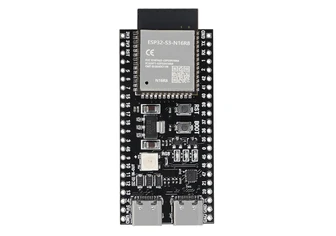
ESP32-S3 board
The device your computer must detect. Keep attached circuits and external power disconnected.
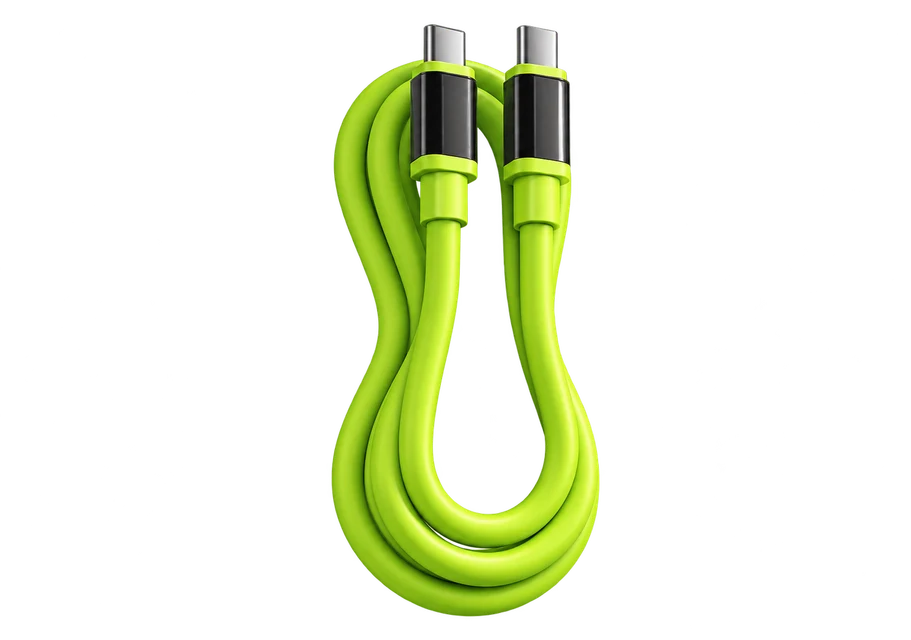
USB data cable
Both ends must fit your board and computer. Connector shape alone does not prove data support.
Computer
Shows connected USB devices and serial ports. It runs your serial tool later.
No coding background is needed. Port discovery works before Python firmware is installed. The optional Python reply check on page 6 requires MicroPython from ML-C03.
Use the native USB socket
Hold the board with its components facing you, antenna up and sockets down. This course uses the left socket, named USB. It connects directly to the ESP32-S3 USB interface.
USB · native route
Left in this front view. The chip can present a USB serial interface, which the computer exposes as a serial port.
COM · bridge route
Right in this front view. A separate USB-to-UART bridge carries serial data. Its driver depends on the exact detected bridge.
Find the port by comparison
Enumeration means the computer detects a USB device and learns what it offers. A serial port is the named connection your serial tool opens. Find it by comparing the computer’s list before and after plugging in this board.
Windows
Open Device Manager. Expand Ports (COM & LPT). Watch for a new entry when USB is connected. Also inspect Other devices or USB entries if no serial port appears.
macOS
Compare ls /dev/cu.* in Terminal before and after connection. A native USB port often contains usbmodem. System Information → USB can help check device detection.
Linux
Compare ls /dev/tty* before and after connection. Native USB often appears as /dev/ttyACM0; a bridge may use ttyUSB. These patterns are hints, not proof of which board you selected.
Install a driver only for a reason
A driver lets the operating system work with a device function. A missing serial port may involve a driver, but a bad cable, wrong socket or application state can cause similar symptoms.
For the native USB route
On current Windows systems, compatible USB serial-class devices can use the included usbser.sys driver. macOS and Linux also provide USB serial support. First inspect the actual entry and its error message; do not install a random bridge driver just because there is no Python prompt.
If a device appears with a warning
- Confirm that the warning entry disappears when this board is unplugged.
- On Windows, open its Properties → Details → Hardware Ids. Record the device description and IDs.
- Use the board/device manufacturer’s official instructions for that exact interface and your operating system. For the COM route, identify the bridge before choosing its vendor driver.
Linux “permission denied” can occur even when the driver and port exist. Follow your distribution’s serial-access group instructions, with administrator help if needed. Do not solve it by making every device writable.
Keep the right port free
A port can be visible but unavailable because another program holds it. Exit the other connection before opening your next tool.
A port seen in download mode proves a different checkpoint from a working MicroPython prompt. Use ML-C03 to install firmware; this lesson does not erase or flash the board.
Ask a known console for a reply
Use this check only after installing compatible MicroPython in ML-C03. mpremote is a computer tool that opens the board’s Python console. An unknown application may speak a different protocol; do not send Python commands blindly.
Prepare mpremote on the computer
With desktop Python 3.10 or newer, open a terminal in a lesson folder. On Windows PowerShell:
python -m venv .venv
.venv\Scripts\python.exe -m pip install mpremote
.venv\Scripts\python.exe -m mpremote connect list
.venv\Scripts\python.exe -m mpremote connect PORT repl
Replace PORT with the runtime port you identified. On macOS/Linux, create the environment with your installed Python command and use .venv/bin/python instead of the Windows executable path. These commands run on the computer, not after >>>.
Example MicroPython console
>>> 2 + 3
5
>>> print("USB link ready")
USB link ready
>>>>>>, 2 + 3 should return 5. The greeting should match what you typed.Exit cleanly: Ctrl-] leaves mpremote and releases the port. A UART terminal, if used later, normally needs 115200 baud; changing baud cannot fix a USB device that never appears.
Work from the first missing step
Do one check at a time. A power light, a USB entry, a serial port and a readable reply are four different observations.
Light on; no USB change
Check the native USB socket. Try a known data cable and a direct computer USB port. Remove an optional hub or adapter from the test path when possible.
USB entry; no serial port
Inspect the detected device and error. Check driver/function and current mode. A USB device may expose a function other than the serial console you expected.
Port exists; open fails
Close other tools. Check your account’s serial-access permission. Rediscover the port after reconnecting.
Port opens; no Python reply
Confirm normal MicroPython runtime, current port and prompt. Try Enter or Ctrl-C. A blank terminal alone does not mean a missing driver.
Your turn
Unplug the board, note the list, reconnect and find its entry twice. Then explain what you would check if the power light came on but no USB device appeared.
- Identify native USB in the front view.
- Find the port by appearance and disappearance.
- Explain which observation points to the next check.
- Release the serial tool and record the current port.
Keep your reference
Keep the lesson beside your practice.
Download the PDF to keep the diagrams, commands, and checkpoints close at hand. Return to the first missing observation when a step does not match.