
EQ-05 · C2C cable
Find the board’s USB connection
A 1 m USB-C data cable for connecting the development board to a computer.
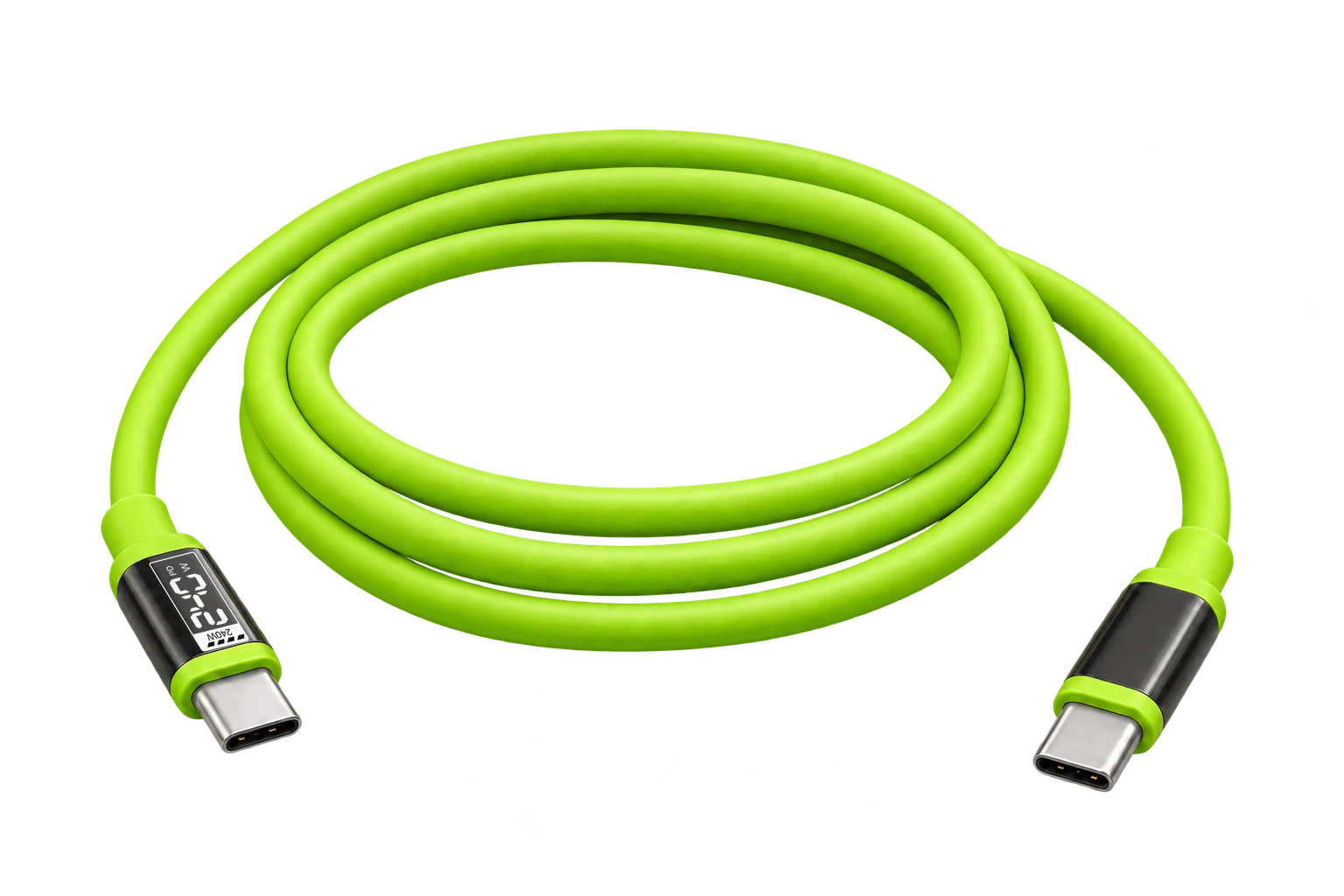
How to use it
You’ll need: USB-C data cable, ESP32-S3, and a computer USB-C port. If the computer has USB-A, use the USB-A to USB-C adapter.
- Disconnect external parts for this test. Connect the cable to the board socket named by your lesson. Viewed from the front, the left USB/OTG port is native USB; the right COM port uses the CH343P USB-to-serial bridge.
- Compare your computer’s list of serial ports with the board unplugged and plugged in. The board’s power indicator alone does not confirm a data connection.
- If no port appears, try a direct computer port and confirm the board socket. Follow the USB lesson for download mode and the right COM port’s driver check. Use only one serial tool at a time.
What to look for: Look for a port that disappears when you unplug the board. The USB-C data cable was tested for port detection and firmware flashing on Windows 11 and macOS 26 or later.
AI prompt
Copy the prompt and replace any brackets with details from your kit.
Find the board’s USB connection
My MoloWorks ESP32-S3 is connected with the USB-C data cable to [left USB/OTG or right COM]. I use [Windows 11 or macOS and version]. The power LED is [on/off], and my ports before and after connecting are [lists]. Help me identify the new port and choose the next cable, driver, or board-mode check. Do not start with a firmware erase.