
Send by BLE; verify by Wi-Fi
Use Bluetooth Low Energy (BLE) to deliver training Wi-Fi settings to your ESP32-S3. Then prove a fresh startup joins the router. Allow about 30 minutes, including practice.
Recognize what you need
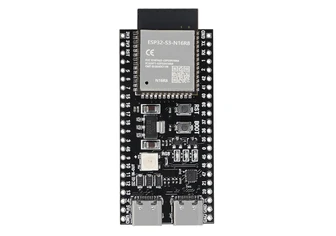
ESP32-S3-N16R8 board
MicroPython v1.29, SPIRAM_OCT; leave peripherals disconnected.
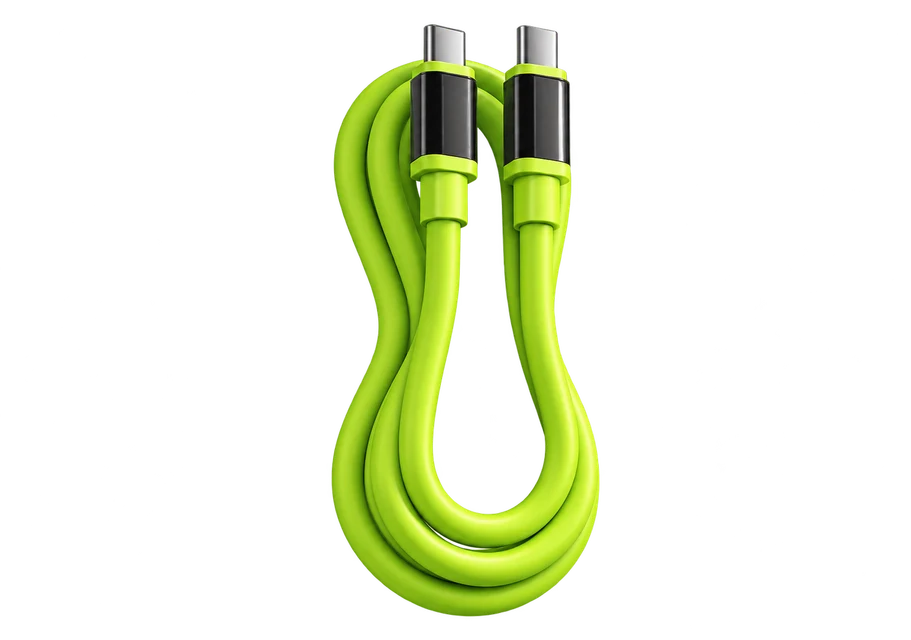
USB data cable
Power, install and recovery through native USB.
Computer with BLE
Python 3.13, a terminal and a working Bluetooth adapter.
Training router
Isolated 2.4 GHz WPA2-Personal network with DHCP enabled.
First complete ML-C03/04 USB setup and ML-C09 backup/recovery. The worked desktop route uses Bleak 3.0.2 on Windows 11 build 22000+, macOS 10.15+, or Linux with BlueZ 5.55+. Allow Bluetooth access for your terminal/Python. No phone app is required.
Follow the two radio paths
The computer is the BLE client: it discovers and sends. The board is the peripheral: it offers the setup service. The board then becomes a Wi-Fi station, joining your router.
Use the supplied application
These files implement the Molo-C12 lab protocol, version 1. Stock MicroPython does not automatically interpret these commands or this filename. Keep the example files together.
On the board
main.py starts ble_setup.py. protocol.py validates commands; lab_config.py validates the saved file.
On the computer
ble_client.py scans, checks the service, subscribes, hides password entry and shows only redacted status notifications.
Match the service before writing
GATT organizes a BLE application into services and characteristics. A characteristic is a named data endpoint. A UUID identifies the service or endpoint; it is safer than reusing an old numeric handle.
| Endpoint | Exact UUID / required property |
|---|---|
| Service | b6201001-3e67-4d7b-a469-d9aa8c120001 |
| RX | b6201002-3e67-4d7b-a469-d9aa8c120001WRITE with response |
| TX | b6201003-3e67-4d7b-a469-d9aa8c120001NOTIFY |
{"op":"hello"} and receive v: 1, state: ready. A matching name alone is not identity or security proof.Small packets; complete messages
A message can be longer than one BLE transfer. Our client writes at most 20 bytes per piece, with a response, and the board sends notifications in the same small pieces. The newline marks the end of a message.
Use one bounded, documented format
{"op":"configure","config":{
  "schema":1,"ssid":"TRAINING-NAME",
  "password":"HIDDEN INPUT FROM CLIENT"
}}
This is a shape example, not a command to paste with a real password. The client constructs it in memory. The config has exactly three fields: schema 1, a 1–32 UTF-8-byte SSID and an 8–63 printable ASCII WPA2 passphrase. A frame is limited to 384 bytes.
v, state and configured. If a message is incomplete, malformed or lost, reconnect and request a fresh status. Never treat an ATT write response as Wi-Fi success.Install without losing your work
Work from the supplied examples folder. Use one board and one USB cable. Front view: antenna up, USB sockets down; native USB is left, COM is right. Use native USB.
- Install desktop tools:
py -m pip install bleak==3.0.2 mpremote. On macOS/Linux usepython3in place ofpy. - Run
py -m mpremote connect list. ReplacePORTbelow with your runtime serial port. Close other serial programs. - List files, then back up every existing file you will replace to a private folder. For example:
py -m mpremote connect PORT fs ls
py -m mpremote connect PORT fs cp :main.py main-before-c12.py
py -m mpremote connect PORT fs cp lab_config.py protocol.py ble_setup.py :
py -m mpremote connect PORT fs cp main.py :main.py
Repeat the backup direction for an existing lab_config.py, protocol.py or ble_setup.py. Do not overwrite a local backup. If main.py is absent, record that; other backup errors must be resolved before installation. Treat any /lab_wifi.json backup as secret. Keep boot.py unchanged.
Subscribe, then send once
Enable Bluetooth, allow your terminal/Python to use it and close other BLE clients. Power only your training board nearby. The desktop script stops if it sees zero or several matching boards.
py ble_client.py
- Confirm the one training board by typing
YES. - Enter the training SSID, then the password at the hidden prompt. If hidden entry is unavailable, the client stops; use an ordinary terminal.
- The script checks UUIDs/properties, subscribes to TX and verifies the version handshake before sending the configuration.
- Read the notification sequence. Do not open a second app to inspect the same board during this attempt.
--status and inspect the current state. Do not blindly resend credentials.Read what each result proves
A write response acknowledges a BLE transfer. The application notifications explain the later stages. The examples below show the expected sequence for a successful attempt.
{"v":1,"state":"accepted","configured":false}
{"v":1,"state":"saved","configured":true}
{"v":1,"state":"joining","configured":true}
{"v":1,"state":"connected","configured":true}
configured means a valid saved file exists. It can already be true on a replacement attempt. connected uses MicroPython’s station isconnected(): associated with an access point and holding a valid IP address. It does not prove Internet access or reachability of a particular server.
Prove the saved settings restart
The board saves the same /lab_wifi.json schema used in ML-C09 and ML-C11. The startup app explicitly loads it. Test that path without sending the password again.
- Let the configuration client finish and disconnect.
- Press upper RST with lower BOOT released. Wait about 20 seconds for the bounded station attempt.
- Run the status-only command below, confirm your board and read its notification.
py ble_client.py --status
Expected: {"v":1,"state":"connected","configured":true}
connected + true
The normal-startup attempt used a valid saved file and reached station connection with an IP. No credential message was sent in this check.
saved / joining / timeout
Wait if still joining; reconnect for another snapshot. A timeout still needs network troubleshooting. missing means no valid saved config was loaded.
Recover a stale service table
After a firmware or service change, the client or operating system can remember an old GATT table. A familiar board name may then show missing or wrong endpoints. Stop before sending credentials.
- Close all BLE apps/scripts, disconnect and press RST. Confirm the intended ML-C12 files are installed. Rescan using the supplied client.
- If a general BLE app is used for inspection, refresh its services or clear that app’s saved device entry. Do not write arbitrary handles.
- If the OS still returns the old table, use its device-removal controls. On Linux BlueZ 5.62+, remove only the identified board with
bluetoothctl -- remove BOARD_ADDRESS, then rescan. Earlier BlueZ caches may need administrator help. - On Windows, remove the board’s saved Bluetooth device entry if one exists, then rescan. macOS cache removal has no universal Bleak recipe: restart the client/Bluetooth and use USB to confirm the app; get platform help if the mismatch persists.
Practise failure and recovery
| Visible result | Next action |
|---|---|
| missing / invalid | Check schema and reconfigure; never display the raw saved file. |
| save_failed | Stop; use USB to check free space and files. Do not claim settings were saved. |
| timeout / connect_failed | Check training router power, 2.4 GHz WPA2, SSID/password, range and DHCP. Retry corrected data once the prior attempt ends. |
| busy | Wait for the current attempt, then reconnect and request status. |
Explain before acting
A: saved followed by timeout. Which stage succeeded, and what do you check next? B: RX exists but TX lacks NOTIFY. Should you send the password?
Check your answers: A: storage succeeded; the station join/IP stage did not. Check the training network. B: no; recover/verify the GATT table first.
Clear training data and restore
Stop the BLE client. Connect native USB, open py -m mpremote connect PORT repl and press Ctrl-C. At the REPL:
import lab_config
print(lab_config.clear())
This removes only /lab_wifi.json and stops the station; it does not securely erase flash or other backups. Exit with Ctrl-], restore your backed-up startup/helper files, or remove only the course files that did not exist before. Press RST. Keep a USB recovery path available.
Files for this lesson
Practice files
Keep the folder names shown below when saving files. Use these files with the matching steps in this lesson.
Keep your reference
Keep the lesson beside your practice.
Download the PDF to keep the diagrams, commands, and checkpoints close at hand. Return to the first missing observation when a step does not match.