
Read a log. Prove one reply.
Use a browser as a serial terminal: connect to the ESP32-S3, read what it says, send one known Python statement and save a useful diagnostic summary. Plan about 25 minutes, including the hands-on checks.
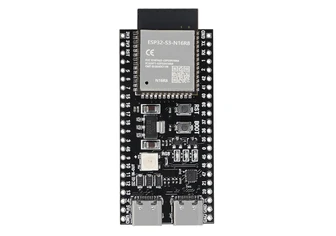
ESP32-S3-N16R8
Use the native USB socket: left in the component-side view, antenna up.
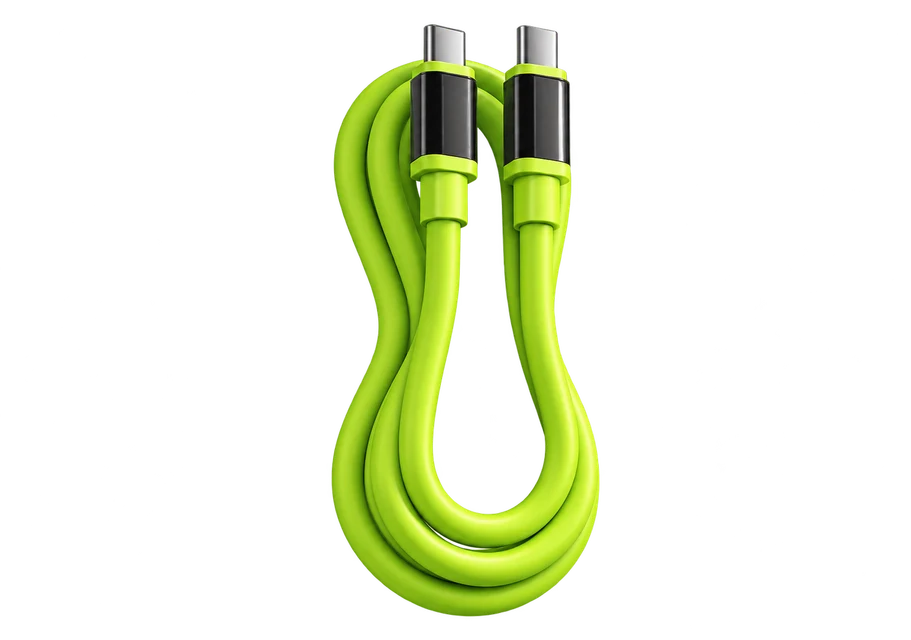
USB data cable
A known data-capable cable that fits your board and computer.
Computer + browser
Use a supported desktop browser and the included local practice page.
Before the live practice
- MicroPython is already installed and known to work; ML-C03 covers firmware setup.
- The computer detects the board’s current serial port; ML-C04 covers cables and drivers.
- Desktop Python is available to start a local file server.
- Peripherals and external power are disconnected. Use one USB data cable.
ML-C08 OK, disconnect cleanly, then describe the first missing observation in a failed attempt.Check the page before the board
Web Serial is a browser interface for reading and writing a serial port. It needs browser support and a trustworthy page context. Use the desktop version of Chrome for this worked lab; another browser is suitable only when the page reports Web Serial available.
Start the included local page
Keep the course output folder and its practice subfolder together. Open a computer terminal inside the course output folder, then run:
python -m http.server 8000 --bind 127.0.0.1
In the browser, open http://localhost:8000/practice/serial-lab.html. Leave the terminal running during the exercise. Stop the local server with Ctrl-C when finished.
Read the course on mobile if useful; perform this USB browser lab on the supported desktop setup. Browser permissions or organization policy can still restrict a supported API.
Choose the current device
Connect the data cable to native USB. Click Connect / choose port in the lab. A user click lets the browser ask which serial device this page may access.
- Identify the entry that appears and disappears with this board, as in ML-C04.
- Select that entry in the chooser. Do not select an unrelated device.
- Confirm the browser’s connection choice. Watch the lab’s session status.
Cancel is an observation
If you cancel, no new port opens. Click Connect again when ready; cancellation does not prove a cable or firmware fault.
Permission belongs to an origin
A remembered grant may let that same page request access again. It does not mean a port is currently open or another application has released it.
Give one tool the port
Close editor serial monitors, mpremote sessions, other serial pages and duplicate tabs before opening this lab. A serial port normally has one open owner at a time.
open.Why 115200?
The lab opens a serial session with baudRate: 115200, matching MicroPython’s documented serial-console setting. It is a communication setting, not a firmware version or a USB power rating.
Read before sending
An open serial port tells you that the browser opened a connection. Read the received text to learn which firmware or device state is responding.
Find the Python prompt
- Click Send Enter to request a fresh line.
- If a known MicroPython program is running, Interrupt (Ctrl-C + Enter) can stop it and return to the prompt.
- Look for
>>>from the known MicroPython setup.
Do not send Python statements to unknown firmware. If you cannot establish the known MicroPython state, return to the firmware or USB lesson before continuing.
Send one harmless test
When the known MicroPython prompt is visible, tick I can see the >>> prompt in the lab. Then send the fixed print test.
Example exchange
>>>
[TX] print("ML-C08 OK")
ML-C08 OK
>>>
[TX] marks text sent by the page. The received output after it is the check that matters.print("ML-C08 OK") followed by a carriage return.ML-C08 OK.>>> prompt.[TX] print(...) only proves the page attempted a send. A Python error, missing marker or missing prompt needs a follow-up check.This test prints text. It does not erase firmware, save a file, change Wi-Fi configuration or drive a GPIO.
Disconnect before switching tools
Click Disconnect and wait for closed before unplugging, resetting for a different mode or opening another serial tool.
Close is not forget
Disconnect closes this open session. A browser may retain the page’s device permission. Remove that grant in browser site settings when needed on a shared computer.
Unexpected unplug
The stream may fail or stop. Use Disconnect to release the session, reconnect the device and identify its current port before trying again.
Repeat a clean cycle
- Disconnect and confirm closed.
- Reconnect using the current runtime port.
- Read the prompt, send the print test and check the received marker.
- Disconnect again before leaving the exercise.
Capture the first failing layer
A useful report names the last successful observation and the first missing one. Keep it small enough for another person to repeat the check.
Example diagnostic summary
Secure context: true
Web Serial present: true
Last step: open
Last error: NetworkError
First missing observation:
no open session
Raw serial log excluded.
Prepare a short report
- Click Prepare summary in the lab.
- Add your browser/version from its About page.
- Replace the first-missing-observation placeholder with one short fact, such as “chooser appeared; opening failed.”
- Review the report, then copy it. Include a small redacted log excerpt only if needed.
Use the first missing observation
Page / API missing
Use the localhost address and a supported desktop browser. Check policy or permissions. The board’s firmware cannot add an API to a browser.
No board in chooser
Check the USB socket, data cable, OS detection and current mode. Return to ML-C04 before changing application code.
Permission granted; open fails
Close competing tools. Identify the current port again. Capture the error name and the open checkpoint.
Open; no Python prompt
Read existing text, send Enter and interrupt only the known MicroPython program. Check normal startup and runtime port.
TX appears; no marker
Confirm the prompt and known firmware. Distinguish command echo from output. Read the Python error if one arrived.
Disconnect or mode change
Close the old session, reconnect and rediscover the port. A remembered permission does not guarantee the same port still exists.
Your completion check
- Recognize the page-support, permission, port, runtime and program checkpoints.
- Read the known MicroPython prompt and receive
ML-C08 OK. - Repeat a clean connect → test → disconnect cycle.
- Write a short redacted report that names the first failing layer.
Keep the native USB route and working firmware from the prerequisite lessons. For deliberate firmware recovery, continue with ML-C10.
Files for this lesson
Practice files
Keep the folder names shown below when saving files. Use these files with the matching steps in this lesson.
Keep your reference
Keep the lesson beside your practice.
Download the PDF to keep the diagrams, commands, and checkpoints close at hand. Return to the first missing observation when a step does not match.