
Work together, keep your judgment
An AI coding teammate can explain, propose and revise code. You define success and check the result. In about 25 minutes, turn one working message into three without changing the wiring or firmware.
Recognize your materials
Computer + editor
Keep files, inspect changes and run a Python terminal. Use any AI coding conversation you can access.
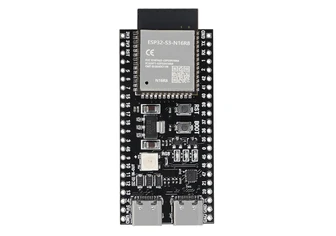
ESP32-S3-N16R8
Run the same small program on the board after the computer check.
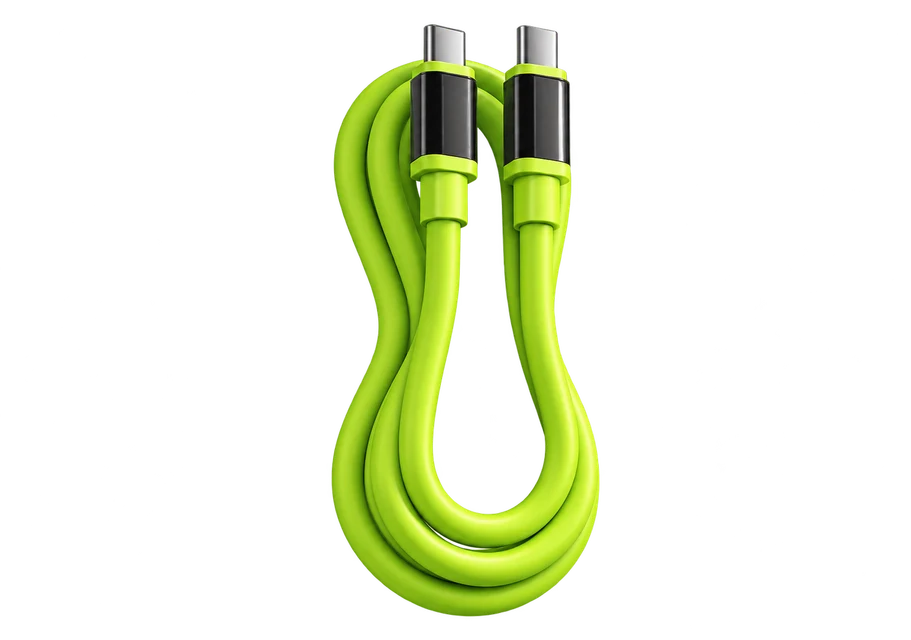
USB data cable
Connect to native USB: left socket in the component-side view, antenna up.
Write a result you can observe.
Ask for one small change.
Read the changed lines.
Run software and the device.
Keep evidence and a way back.
Before the live practice
- Desktop Python, a text editor and access to an AI coding conversation.
- MicroPython already running on the board; ML-C03 covers firmware setup and ML-C04 covers USB.
- Keep peripherals and external power disconnected. Use one USB data cable.
A diff is a view of changed lines. A test is a repeatable check against an expected result. The next pages introduce both.
Give the teammate a useful brief
A vague request such as “make it better” leaves too many choices open. Give the teammate a small goal, relevant facts and a result you can see.
ESP32-S3-N16R8 · MicroPython · USB console
File: status.py · no attached peripherals
Print Ready 1, Ready 2, Ready 3, then stop.
Keep the one-second sleep call.
Change only the repeat count. No wiring, packages, networking or firmware changes.
Show the smallest diff and explain how to check it. Ask if a needed fact is missing.
A brief you can use
status.py prints one readiness message. Change it to print Ready 1, Ready 2, Ready 3, then stop. Keep the existing one-second sleep call and message format. Change only the repeat count; do not add packages, networking, firmware or wiring changes. Show the smallest diff, explain it and suggest checks. Ask if a needed fact is missing.Start from something that works
Download the starting program, backup copy and computer check into one folder. Open status.py in your editor.
from time import sleep REPEATS = 1 for count in range(1, REPEATS + 1): print("Ready", count) sleep(1)What the lines do
sleep provides a pause. REPEATS is a named value. The loop visits 1 through REPEATS. print sends a line of text; sleep(1) pauses after it.
Record the baseline
python status.py
Run this in the computer terminal, in the folder containing the files.
status-before.py unchanged. If the baseline does not run, solve that first. Do not mix a setup failure with the new feature.Read the diff before using it
The requested behavior needs one value changed. A diff shows the old line with a minus and the new line with a plus. These signs belong to the comparison, not to the Python file.
Ask three review questions
- Does it meet the goal? REPEATS becomes 3; the loop ends after the third message.
- Does it keep the constraints? The print format and sleep call remain.
- Is anything unrelated changing? No pin map, package, network setting or firmware update is needed.
REPEATS = 1 to REPEATS = 3 in status.py, save the file and compare it with the backup.Check the result on the computer
The requirement is exact: three lines in order, then the program finishes. Run the included check in your computer terminal after saving the edit.
python check_status.py
Computer check
python check_status.py
Ready 2, Ready 3
Checks the exact ordered output and that the program finishes.
Device observation
Ready 1 → Ready 2 → Ready 3
Observe on the board too. A computer pass does not establish a working USB link or installed runtime.
What the check does
It starts your local status.py, collects the printed lines and compares them with Ready 1, Ready 2, Ready 3. It also rejects an error or a program that does not finish within ten seconds. The check runs on the computer, not inside MicroPython.
PASS: exactly Ready 1, Ready 2, Ready 3. The ten-second limit catches a stuck practice program; it does not measure precise message timing.Observe the same code on the board
Use the known ESP32-S3-N16R8 with MicroPython already installed. Keep attached circuits and external power disconnected. No new wiring or firmware installation is part of this change.
Native USB socket
1 · Open the runtime connection
Use the computer Python environment from ML-C03 that contains mpremote. In these commands, replace python with that environment’s executable: for example .venv\Scripts\python.exe on Windows or .venv/bin/python on macOS / Linux. Close other serial tools.
python -m mpremote connect list
python -m mpremote connect PORT run status.py
Replace PORT with your board’s current runtime port. A name such as COM7 is only an example. Run the command from your practice folder.
2 · Compare what you actually see
Look for exactly three lines: Ready 1, Ready 2, Ready 3, roughly a second apart, then completion. Record your board’s actual output rather than copying the example.
mpremote run sends the local file for execution without saving it as a board startup file. It can stop the current Python application. Save any work you need first. It does not replace the installed firmware.Bring back evidence, not a guess
When a result differs from the goal, send the smallest useful evidence: the exact command, relevant code, expected result and actual output.
Three lines, numbered 1–3, then stop.
Ready 1
Ready 2
Ready 3
Ready 4
status.py + exact command + these four output lines.
Ask why there is an extra line. Keep the other behavior.
python status.py prints four lines, shown above. Here is the current file. Explain the cause and propose the smallest correction. Keep the print format and sleep call unchanged. Do not change the check to accept four lines.Keep each layer separate
- Syntax error: capture the exact error line and the nearby code.
- Wrong output: compare expected and observed lines.
- No device connection: capture the port/tool error and return to USB setup.
Share enough; keep private data out
Before sharing a prompt, screenshot or log, read it as a stranger would. Keep the information needed to reproduce the problem and remove private values.
Useful context
Board model · runtime · relevant file
Exact error · expected result
Small, relevant code excerpt
Replace private values
WIFI_PASSWORD = "<redacted>"
Review logs, screenshots and files before sharing. Remove passwords, tokens and unrelated personal data.
This practice program needs no network credentials. In a later network project, replace the actual password or access token with a placeholder before sharing. Do not paste a whole configuration file because the relevant error is only one line.
status-before.py
One message works.
status.py
One reviewed change.
Software + device evidence
Save the working version.
If an experiment fails
Keep the failure evidence, then restore the saved status-before.py contents into status.py if you need the one-message baseline. Run it again and confirm that the known behavior is back. ML-C06 teaches Git checkpoints for larger projects.
Use the loop on a new small goal
Now ask for two readiness messages instead of three. Before editing, write the new expected lines and keep the earlier three-message version.
Write a result you can observe.
Ask for one small change.
Read the changed lines.
Run software and the device.
Keep evidence and a way back.
- Write a brief for
Ready 1andReady 2, then stop. Keep the same print format and sleep call. - Ask for a minimal diff. Predict which value will change.
- Review and apply it. Deliberately update the check’s expected list for the new two-message requirement.
- Run the computer check, then observe the board. Record both outcomes.
- If anything fails, send a narrow report with expected versus actual output.
Ready 1 and Ready 2. A third line is now a failure. Keep the check’s success message consistent with the new requirement too.You are ready when you can…
- State the goal, known facts, boundaries and observable success.
- Explain every changed line before running the proposal.
- Show a check that rejects a wrong output and accepts the intended output.
- Separate computer evidence from actual-device evidence.
- Share a small error report without secrets and return to a saved baseline.
Files for this lesson
Practice files
Keep the folder names shown below when saving files. Use these files with the matching steps in this lesson.
Keep your reference
Keep the lesson beside your practice.
Download the PDF to keep the diagrams, commands, and checkpoints close at hand. Return to the first missing observation when a step does not match.